Mastering Virtual Interviews: A Guide to Zoom, Teams, and Meet
The landscape of professional interviews has shifted permanently. Whether you are aiming for a Fortune 500 company or a remote startup, there is a high probability that your first impression will happen through a screen.
With so many platforms in play, how do you ensure you look like a pro regardless of whether the invite link says Zoom, Teams, or Meet? Here is your guide to mastering the virtual interview suite.
1. Zoom: The Industry Standard
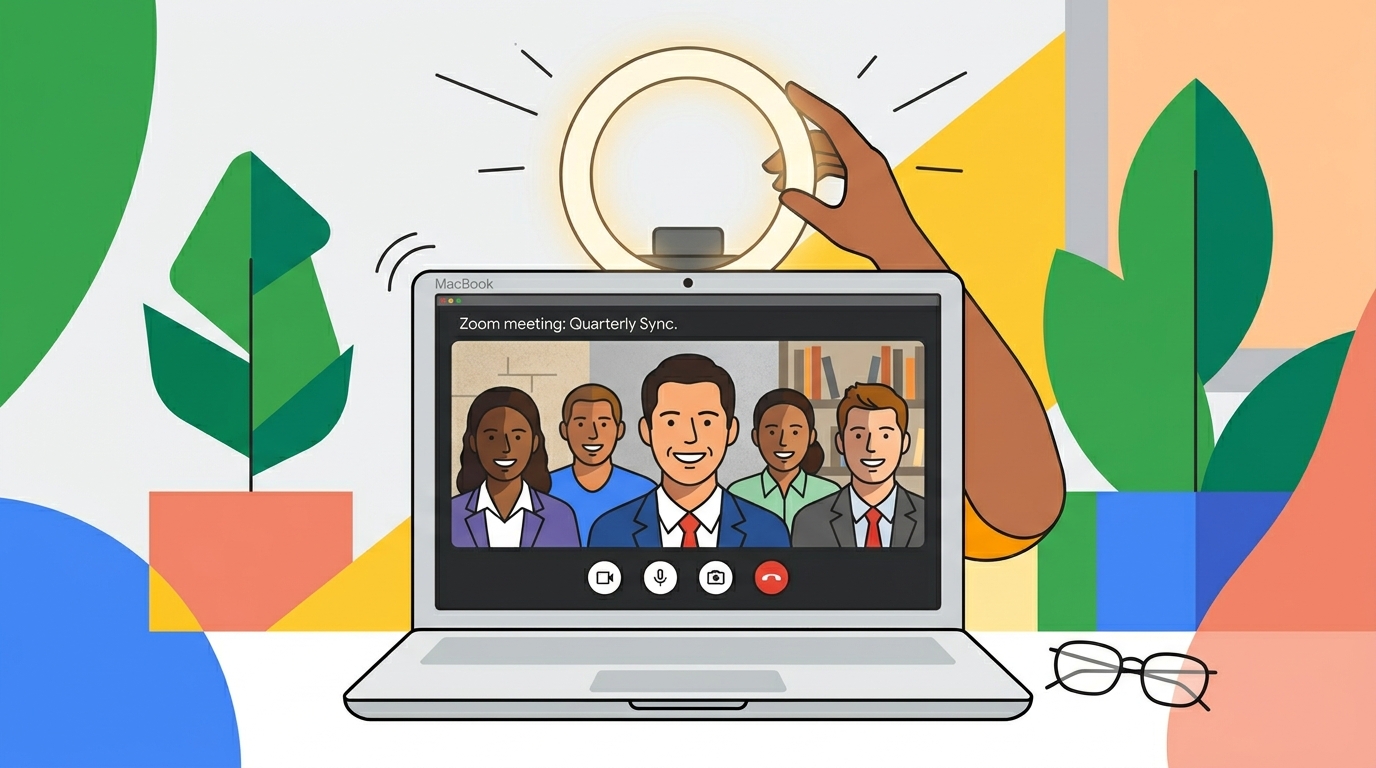
Zoom is often the default for recruiters due to its reliability and widespread familiarity. It is user-friendly, but that accessibility can lead to casual mistakes.
Pro-Tips for Zoom:
The "Touch Up My Appearance" Feature: Tucked away in video settings, this subtle filter can smooth out skin tones and lighting issues. Use it, but don't overdo it.
Rename Your Device: Before you click join, check your profile name. Ensure it is set to "First Last Name," not your laptop's model name (e.g., "iPhone 13" or "Desktop-XYZ").
Silence Notifications: Use Zoom’s ability to "Focus Mode" if available, or simply quit all non-essential apps to prevent pings during your pitch.
2. Microsoft Teams: The Corporate Powerhouse
If you are interviewing with a larger corporation, expect a Microsoft Teams invite. It is deeply integrated into Office 365, meaning the interview environment can feel more formal and technical.
Pro-Tips for Teams:
Use the Background Blur: Teams offers excellent AI-driven background blur. If your room is slightly messy or you are in a high-traffic area, use the "Blur" effect—it looks professional and keeps the focus entirely on you.
Check Your Permissions: Teams can sometimes be strict about browser-based access. Always download the desktop app before the interview to avoid technical hiccups that often plague the web-browser version.
The "Raise Hand" Etiquette: Even in a one-on-one interview, familiarize yourself with the UI. If you are waiting for a turn to speak during a panel, know where the reactions button is to show engagement without interrupting.
3. Google Meet: The Sleek & Minimalist
Google Meet is prized for its simplicity. Because it lives in the browser, it is incredibly fast to join. However, because it lacks a standalone desktop app, you have to be extra vigilant about browser clutter.
Pro-Tips for Google Meet:
Clear Your Tabs: When screen sharing on Meet, you run the risk of exposing your entire browser session. Close all tabs unrelated to the interview—this prevents accidental disclosure of your personal emails or shopping sites.
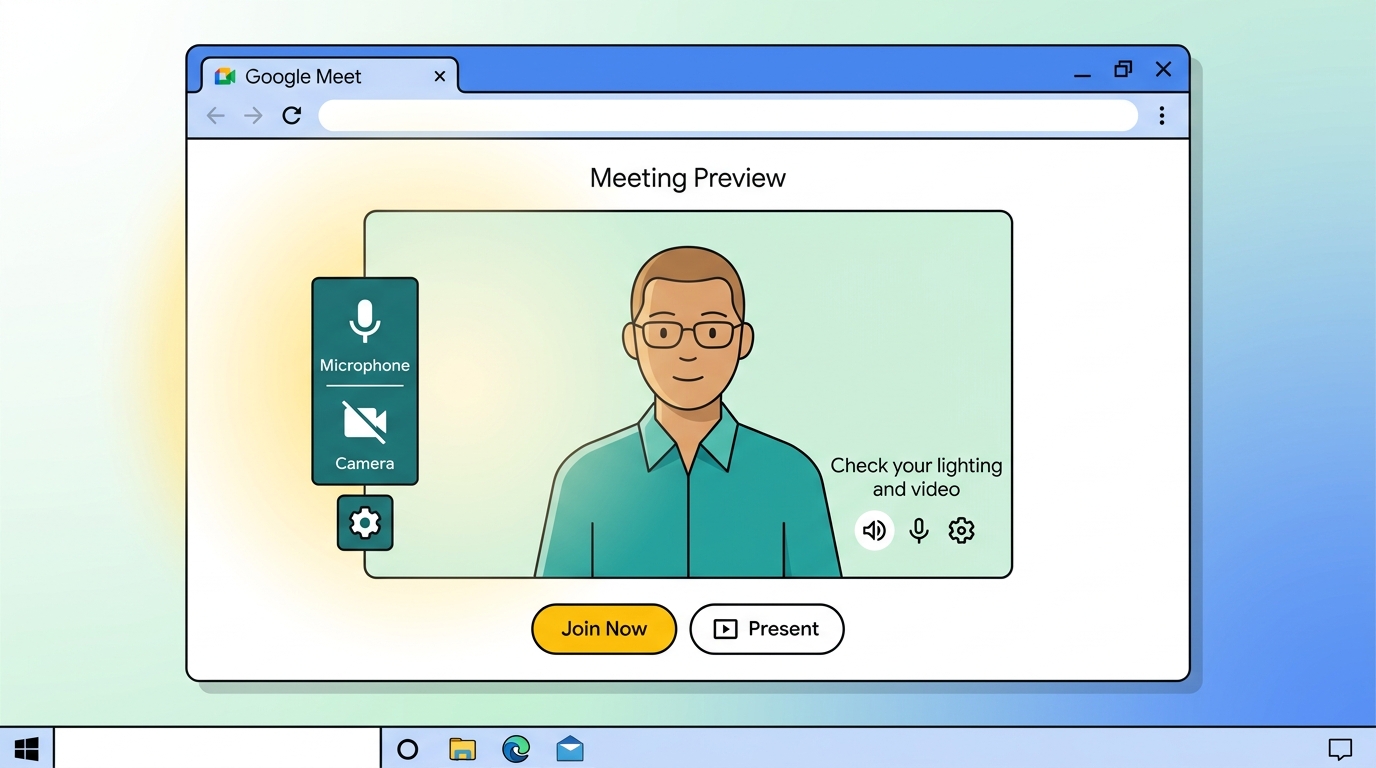
Check Lighting in Preview: Meet provides a clear "preview" screen before you click "Join." Use those five seconds to check if your face is well-lit and not backlit by a window.
Test Your Microphone: Meet’s audio processing is generally great, but verify your hardware settings within the meeting by clicking the three-dot menu and checking the "Settings > Audio" tab.
Universal Checklist for Every Platform
Regardless of the platform, the fundamental rules of virtual interviewing remain the same:
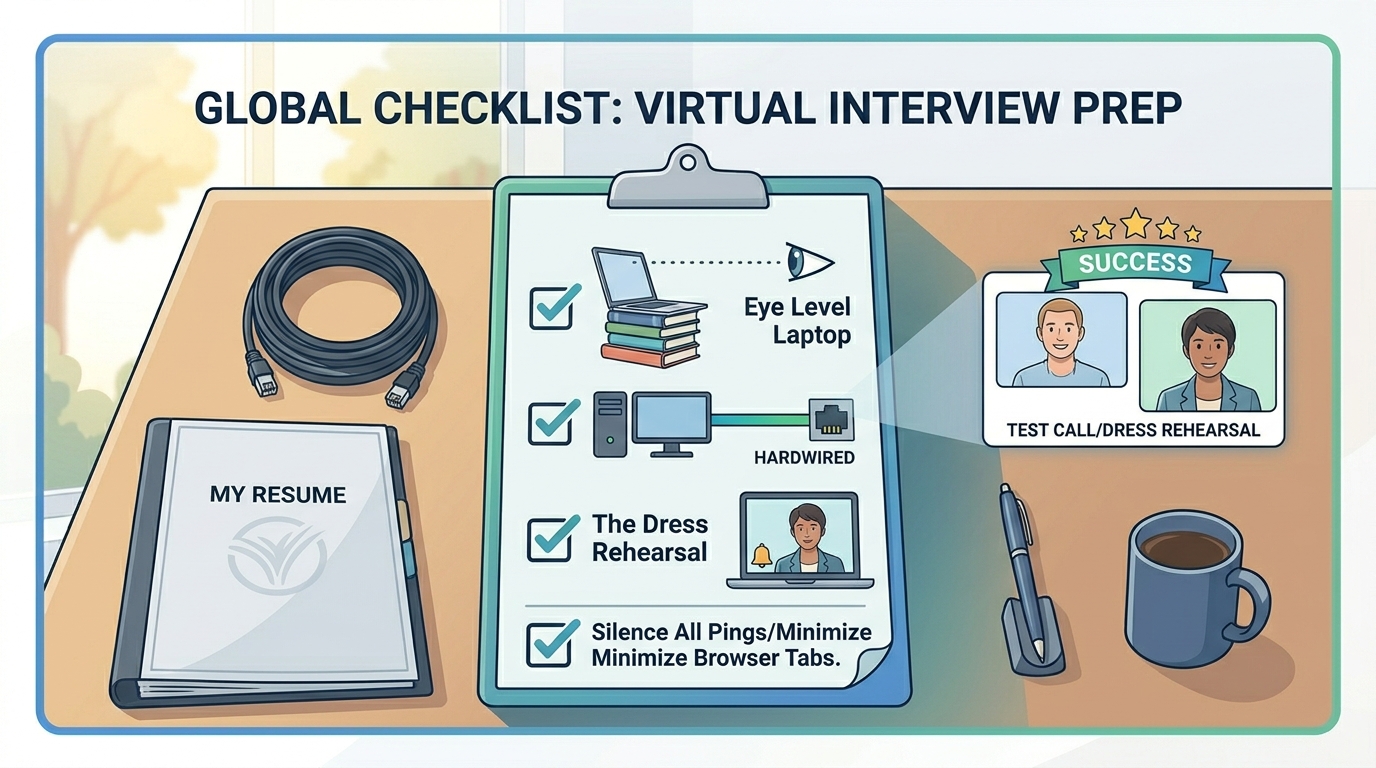
Eye Level Matters: Prop your laptop up on a stack of books so the camera is at eye level. Looking up into a camera is never flattering.
Hardwire Your Internet: If possible, plug your computer directly into your router via an Ethernet cable. Wi-Fi can lag, but a stable connection prevents the "can you hear me now?" dance.
The Dress Rehearsal: Host a "Test Call" with a friend 30 minutes before your actual interview. Check your framing, sound quality, and the view behind you.
The Bottom Line
Tools like Zoom, Teams, and Meet are just canvases. You are the art. By handling the technical side of these platforms with confidence, you remove the barriers between you and the hiring manager. You aren't just "showing up"—you’re demonstrating that you have the digital fluency required for the modern, hybrid workforce.